Cleanup work is one of the most lucrative and most painful engagements in bookkeeping. The books exist but they're wrong: transactions are miscategorized, reconciliations are stale, Undeposited Funds is a slush bucket, the chart of accounts has accumulated duplicates and one-off accounts, and a year of bank-feed posts need to be re-categorized before anyone can file a return.
The standard tools for this work — the QuickBooks Online Reclassify Transactions screen, the bank feed, Excel exports, third-party CSV importers — get you most of the way there, but they were not designed for the volume and the cross-cutting filtering that real cleanup demands. Instabooks is. This article walks through the parts of the product that map directly onto a cleanup workflow. For a side-by-side on what the native tools can and can't bulk-edit, see how to bulk edit & reclassify QuickBooks Online transactions.
See it on a live ledger. Try the instant demo — or connect your own QuickBooks free.
Try it instantlyDiagnose before you quote
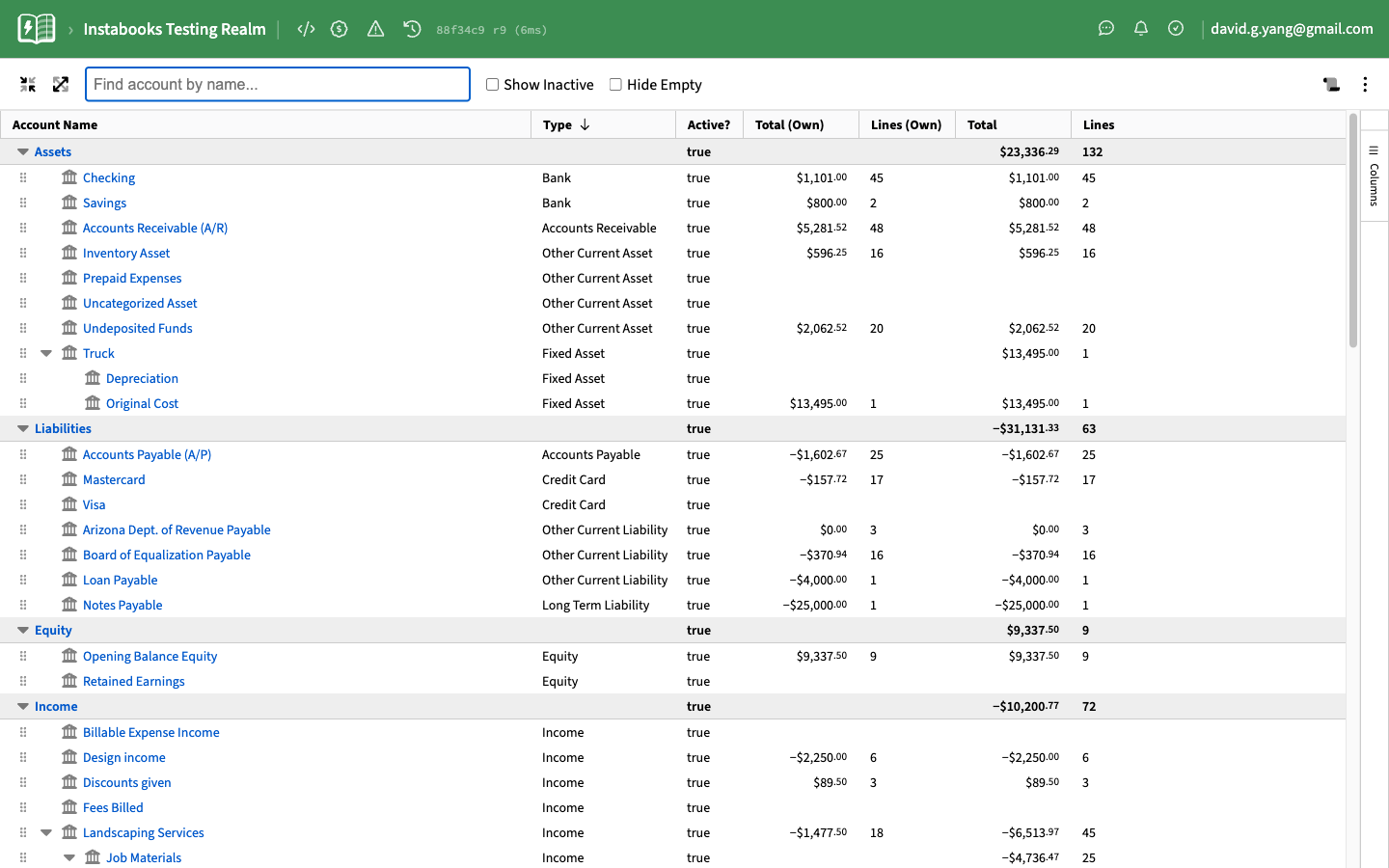
Every successful cleanup starts with a paid diagnostic — a scoped audit you can hand back to the prospect to justify the quote. The Chart of Accounts view is the right starting point. It shows every account in the file with line counts, own-currency totals, and consolidated totals, and it's sortable and filterable. A single pass surfaces the usual suspects:
- Duplicate accounts with near-identical names
- Accounts misclassified between types (asset vs. expense, bank vs. other current asset)
- One-off accounts with a single line, often created accidentally by an auto-categorizer
- Sub-accounts whose parents make no sense
- Empty or near-empty accounts that can be inactivated
- Accounts ballooning with miscategorized transactions
You can rename, re-parent, inactivate, and merge from this view — all changes flow straight back to QuickBooks Online. A clean chart of accounts is the foundation for everything else.
The ledger shows lines, not transactions
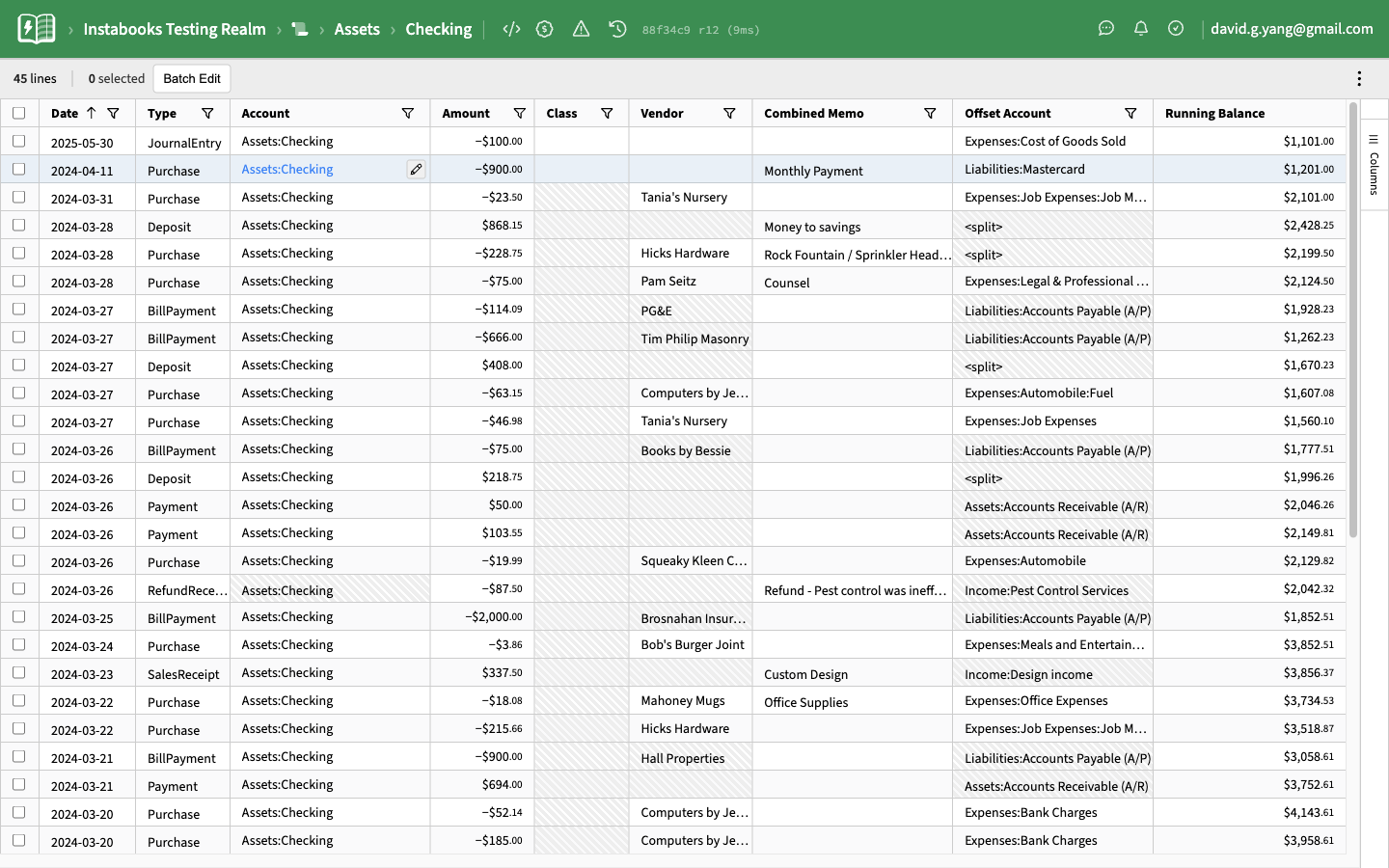
Cleanup is fundamentally a double-entry problem. A single bad journal entry can sit on either side of the books, and the QuickBooks Online transaction screen only shows you one side at a time. The Instabooks ledger shows every line that hits the selected account, with the offsetting account on each row, so you can see at a glance where money came from and where it went.
Each row links one click back to the underlying transaction in QuickBooks Online for cross-referencing, edits that need the native form, or attaching documentation.
Filter to find the mess
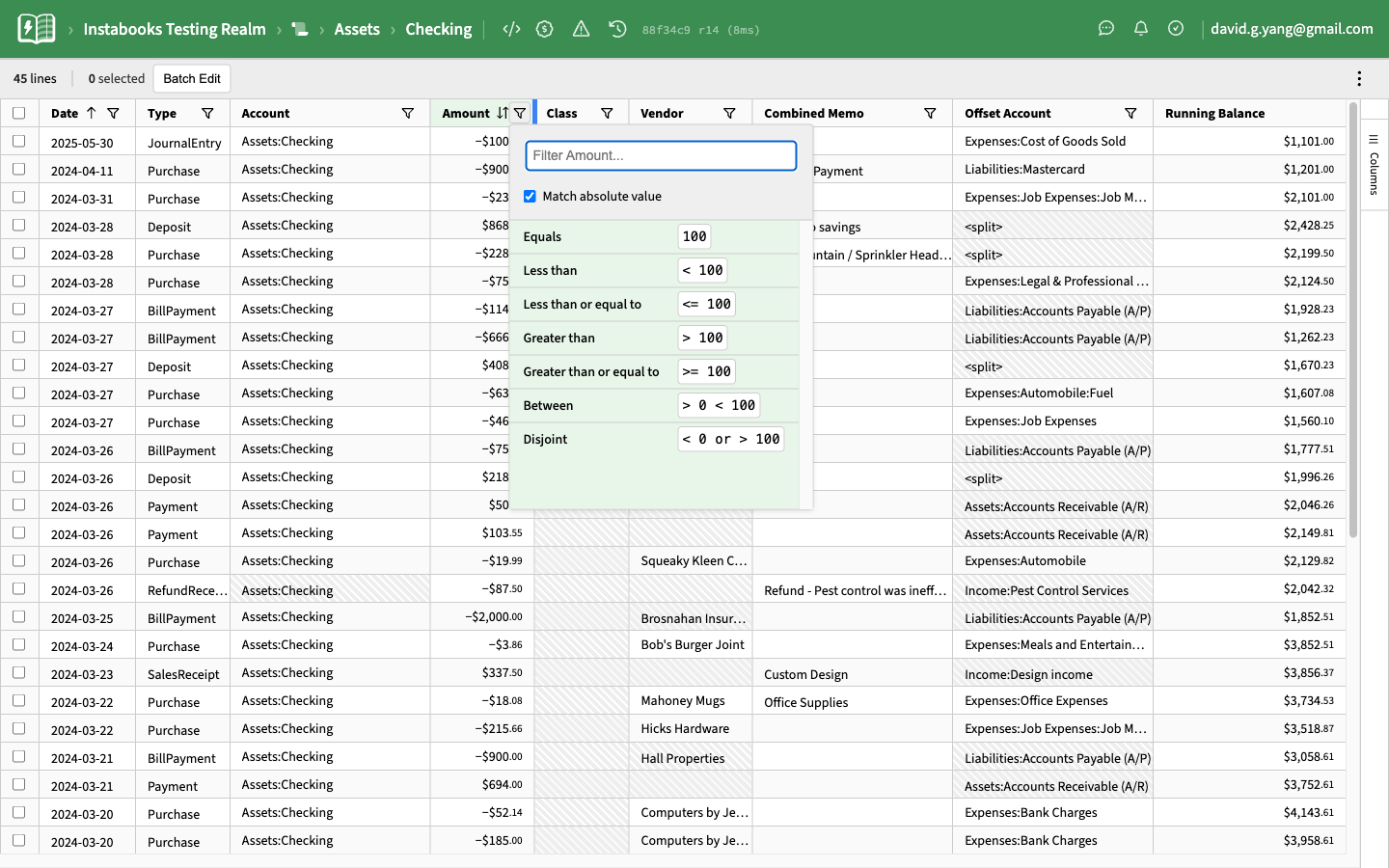
Nearly every column header supports filtering. The operators are appropriate for each data type — numeric comparisons on Amount, date ranges on Date, contains/equals on free-text fields, multi-select on values like Class, Vendor, Customer, and Offset Account. Filters compose, so you can quickly express questions like:
- "Every charge over $500 on this credit card with no class assigned"
- "Every line posted to Ask My Accountant in 2026"
- "Every deposit that offsets Undeposited Funds with no customer"
- "Every transaction the owner ran through the business card at the gas station"
These are the questions you'd otherwise answer with a CSV export and a spreadsheet pivot. Here they're a few clicks.
Select what you found
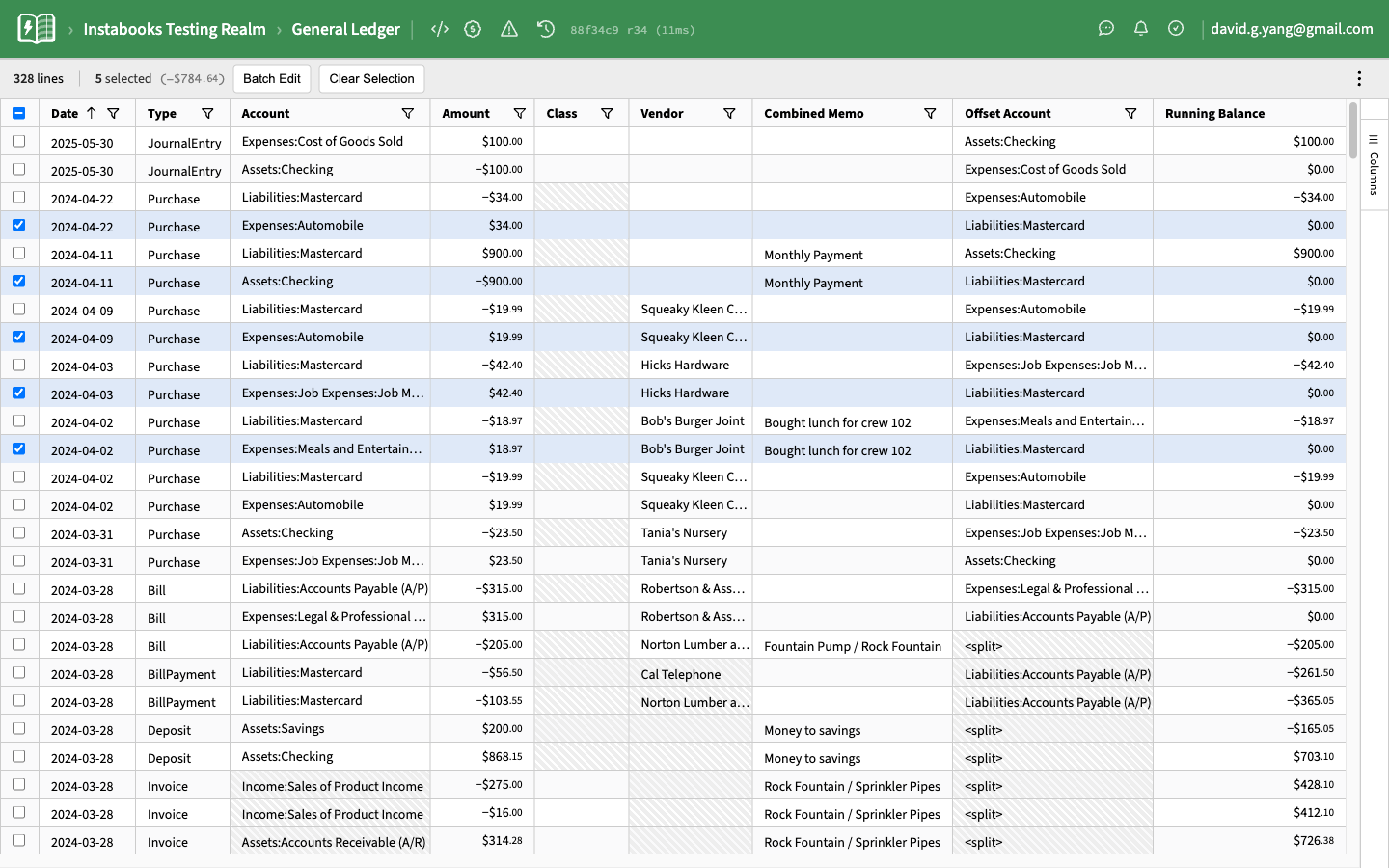
The header checkbox selects every line in the current filter, and row checkboxes flip individual lines. Unlike the QuickBooks Online Reclassify Transactions screen, there's no hard 300-transaction cap, no requirement to work one account at a time, and no restriction to income and expense accounts. The General Ledger view selects across every account at once — useful when you're chasing a vendor that got coded a dozen different ways.
Batch edit, including the properties QuickBooks won't let you touch
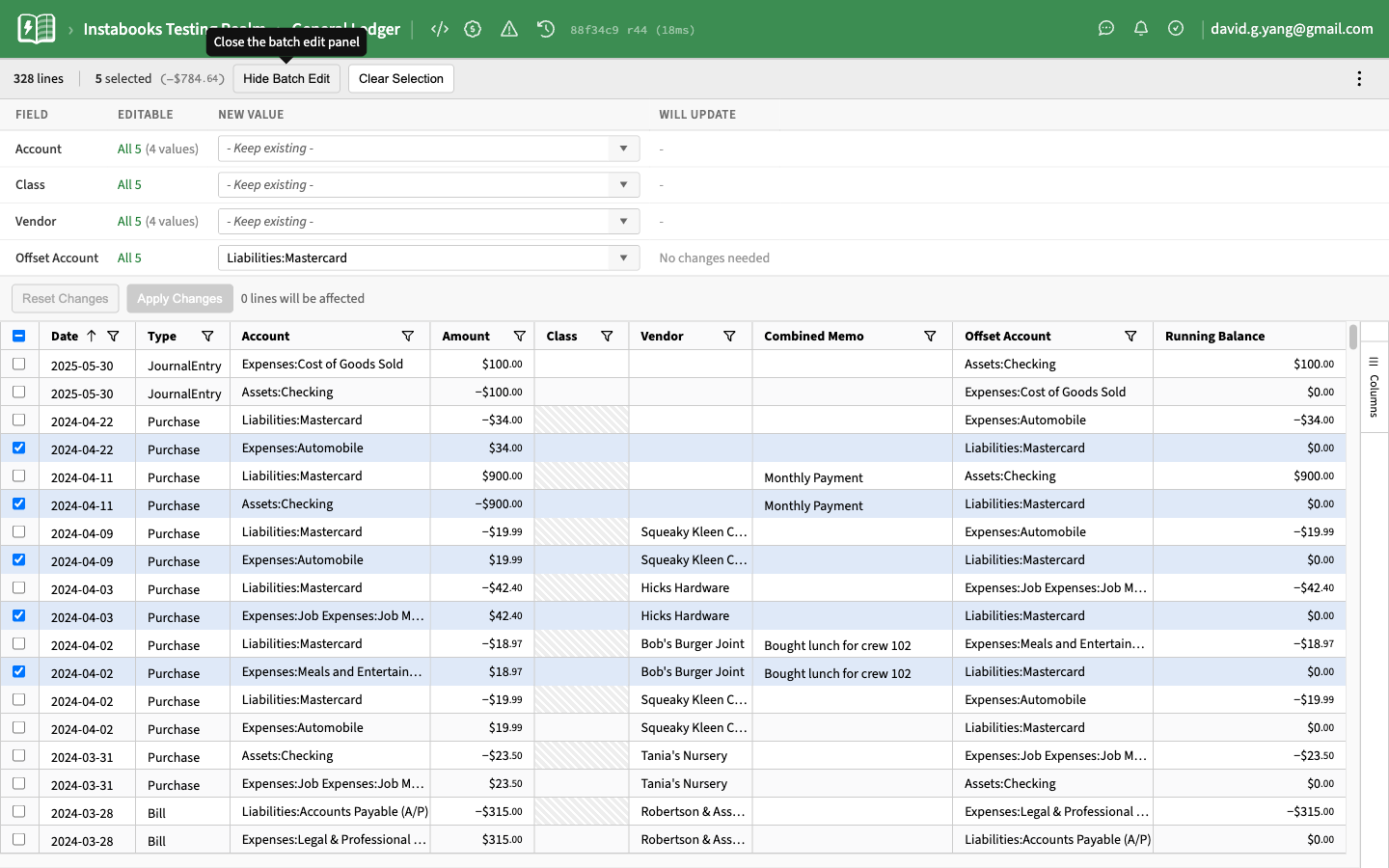
With a selection, the Batch Edit panel opens above the ledger. Each editable property is a row that tells you how many distinct values exist across the selection and how many lines are editable for that property. Instabooks supports batch-editing properties that QuickBooks Online Reclassify cannot touch — Class, Location, Vendor, the bank or credit-card account on an expense, customer and bill payment routing — and it surfaces conflicts up front rather than failing in the middle of an apply.
The selection-aware editor is where cleanup velocity actually comes from. A few hundred miscategorized purchases that would take an afternoon of one-at-a-time edits in the QuickBooks Online UI become a single Apply Changes click.
Cross-account work in the General Ledger
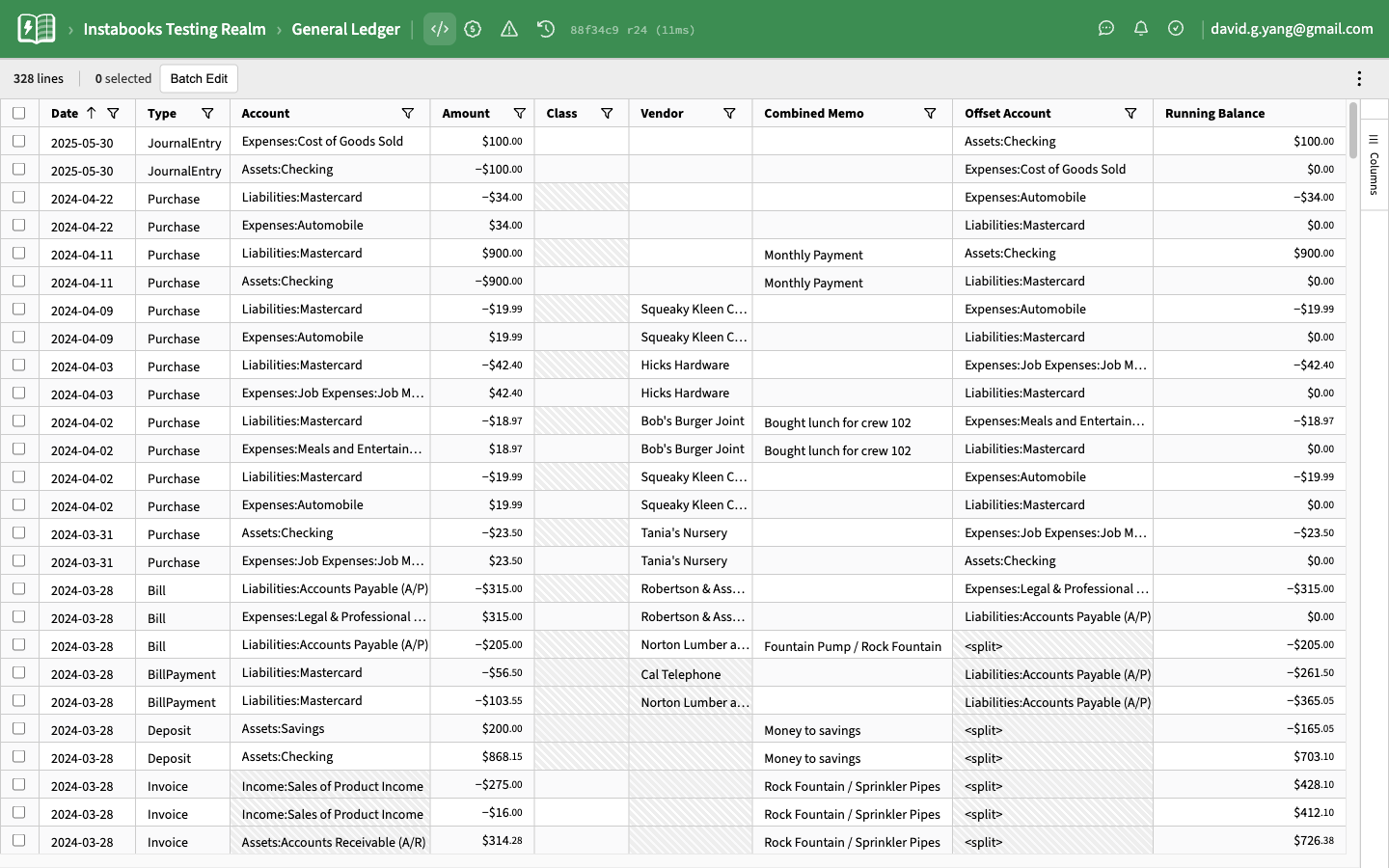
Many cleanup tasks are not "fix this account" but "fix this pattern, wherever it appears." The General Ledger view shows every line of every transaction in the company in a single filterable, sortable, multi-selectable table. Re-coding all the Stripe deposits the prior bookkeeper sent to Sales instead of a clearing account, sweeping every personal charge off the business card and into Owner Draws, or pulling every line that hits Ask My Accountant into one place to triage — they all live here.
What this looks like in practice
A typical cleanup engagement, mapped onto these features:
- Open the Chart of Accounts. Note duplicates, misclassifications, abandoned accounts, and the ballooning categories. This is the diagnostic you deliver to the prospect.
- Standardize the chart of accounts. Rename, re-parent, inactivate, and merge in place. Everything syncs to QuickBooks Online.
- Open the General Ledger. Filter to suspect patterns — vendor coded multiple ways, owner charges on the business card, deposits with no offset to Undeposited Funds, lines parked in Ask My Accountant.
- Select and Batch Edit. Resolve the pattern in one pass instead of one transaction at a time. Move on.
- Drop into individual account ledgers for the high-stakes balance-sheet accounts. Reconcile, tie out, and use the one-click jump back to QuickBooks Online when an entry needs more than a property change.
The end state is a tax-ready file your client trusts and a scope you actually got paid for.